
Axiom CLI
You can use the command line to ingest data, manage authentication state, and configure multiple organizations.
Installation#
Install using go install#
To install Axiom CLI, make sure you have Go installed, then run this command from any directory in your terminal.
go install github.com/axiomhq/cli/cmd/axiom@latestInstall using Homebrew#
You can also install the CLI using Homebrew
brew install --cask axiomhq/tap/axiomThis installs Axiom command globally so you can run axiom commands from any directory.
To update:
brew upgrade --cask axiomInstall from source#
git clone https://github.com/axiomhq/cli.git
cd cli
make install # Build and install binary into $GOPATH
Run the Docker image#
Docker images are available on DockerHub.
docker pull axiomhq/cli
docker run axiomhq/cli
You can check the version and find out basic commands about Axiom CLI by running the following command:
axiom
Authentication#
The recommended way to authenticate Axiom CLI is with a personal access token. A personal access token starts with xapt- and lets you do everything you can do in the Axiom Console, including querying and streaming data.
- In the Axiom Console, go to Settings → Profile → Personal Tokens and create a token. Copy the token value (it starts with
xapt-). - Log in with the token. Use one of the following methods.
Interactive login (you’re prompted for your token and organization ID):
axiom auth login --auto-login=falseNon-interactive login (useful for scripts and CI). When you pipe the token, both --alias (a local name for the deployment) and --org-id are required:
echo "xapt-your-token" | axiom auth login --alias "axiom" --org-id "your-org-id" -fAlternatively, skip axiom auth login entirely and set environment variables. AXIOM_ORG_ID is optional with a personal access token—the token resolves to your default organization, so set it only when your account belongs to more than one organization and you want to target a specific one:
export AXIOM_TOKEN="xapt-your-token"
export AXIOM_URL="https://api.axiom.co"
export AXIOM_ORG_ID="your-org-id" # optional; only needed to target a specific organization
To confirm you’re authenticated, run axiom dataset list.
Running axiom auth login without --auto-login=false starts a browser-based login flow. This flow is currently affected by a known issue: after you authorize the application, the login can fail with an OAuth error (oauth2: "invalid_request"). Until this is resolved, use the personal access token method described above.
For more information about tokens, see Tokens.
Managing multiple organizations#
While most users will only need to manage a single Axiom deployment, Axiom CLI provides the capability to switch between multiple organizations for those who require it. You can easily switch between organizations using straightforward CLI commands. For example, axiom auth switch-org lets you change your active organization, or you can set the AXIOM_ORG_ID environment variable for the same purpose.
Every setting in Axiom CLI can be overwritten via environment variables configured in the ~/.axiom.toml file. Specifically, AXIOM_URL, AXIOM_TOKEN, and AXIOM_ORG_ID are important for configuring your environment. Set AXIOM_URL to your Axiom domain. For more information, see Edge deployments. You can switch between environments using the axiom auth select command.
To view available environment variables, run axiom help environment for an up to date list of env vars:
AXIOM_DEPLOYMENT: The deployment to use. Overwrites the choice loaded
from the configuration file.

AXIOM_ORG_ID: The organization ID of the organization the access
token is valid for.

AXIOM_PAGER, PAGER (in order of precedence): A terminal paging
program to send standard output to, for example, "less".

AXIOM_TOKEN: Token The access token to use. Overwrites the choice
loaded from the configuration file.

AXIOM_URL: The deployment url to use. Overwrites the choice loaded
from the configuration file.

VISUAL, EDITOR (in order of precedence): The editor to use for
authoring text.

NO_COLOR: Set to any value to avoid printing ANSI escape sequences
for color output.

CLICOLOR: Set to "0" to disable printing ANSI colors in output.

CLICOLOR_FORCE: Set to a value other than "0" to keep ANSI colors in
output even when the output is piped.
One-Click Login#
The One-Click Login is an easier way to authenticate Axiom-CLI and log in to your Axiom deployments and account resources directly on your terminal using the Axiom CLI.
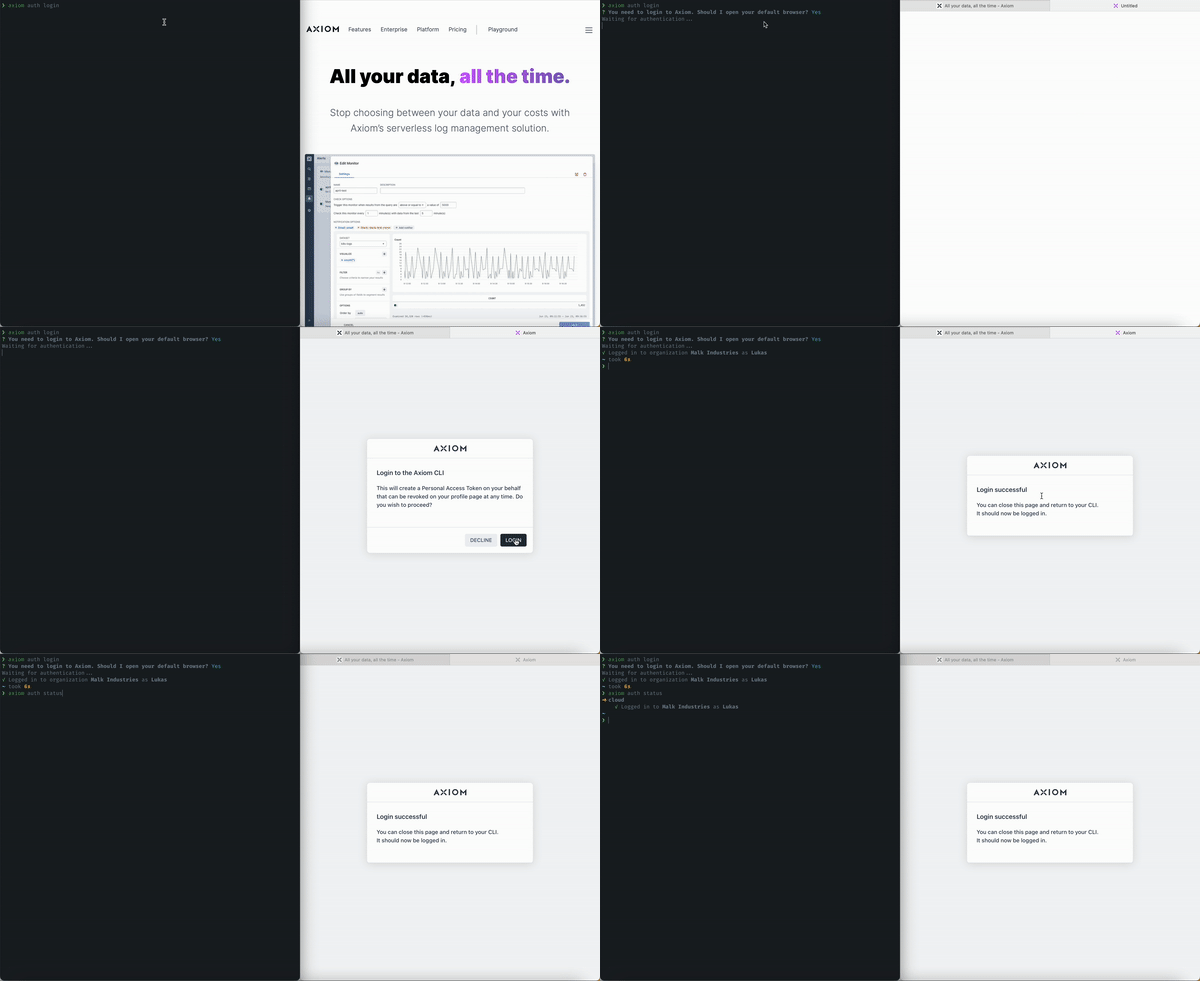
Field list
Tokens#
You can generate an ingest and personal token manually in your Axiom user settings.
See Tokens to know more about managing access and authorization.
Configuration and Deployment#
Axiom CLI lets you ingest, authenticate, and stream data.
For more information about Configuration, managing authentication status, ingesting, streaming, and more, visit the Axiom CLI repository on GitHub.
Axiom CLI supports the ingestion of different formats of data ( JSON, NDJSON, and CSV)
Querying#
Get deeper insights into your data using Axiom Processing Language
Ingestion#
Import, transfer, load, and process data for later use or storage using the Axiom CLI. With Axiom CLI you can Ingest the contents of a JSON, NDJSON, CSV logfile into a dataset.
To view a list of all the available commands run axiom on your terminal:
➜ ~ axiom
The power of Axiom on the command-line.

USAGE
  axiom <command> <subcommand> [flags]

CORE COMMANDS
  ingest:      Ingest structured data
  query:       Query data using APL
  stream:      Livestream data

MANAGEMENT COMMANDS
  auth:        Manage authentication state
  config:      Manage configuration
  dataset:     Manage datasets

ADDITIONAL COMMANDS
  completion:  Generate shell completion scripts
  help:        Help about any command
  version:     Print version
  web:         Open Axiom in the browser

FLAGS
  -O, --auth-org-id string   Organization ID to use
  -T, --auth-token string    Token to use
  -C, --config string        Path to configuration file to use
  -D, --deployment string    Deployment to use
  -h, --help                 Show help for command
      --no-spinner           Disable the activity indicator
  -v, --version              Show axiom version

EXAMPLES
  $ axiom auth login
  $ axiom version
  $ cat http-logs.json | axiom ingest http-logs

AUTHENTICATION
  See 'axiom help credentials' for help and guidance on authentication.

ENVIRONMENT VARIABLES
  See 'axiom help environment' for the list of supported environment variables.

LEARN MORE
  Use 'axiom <command> <subcommand> --help' for more information about a command.
  Read the manual at https://axiom.co/reference/cli
Command Reference#
Below are the commonly used commands on Axiom CLI
Core Commands
| Commands | Description |
|---|---|
| axiom ingest | Ingest data |
| axiom query | Query data using APL |
| axiom stream | Live stream data |
Management Commands
| Commands | Description |
|---|---|
| axiom auth login | Login to Axiom |
| axiom auth logout | Logout of Axiom |
| axiom auth select | Select an Axiom environment configuration |
| axiom auth status | View authentication status |
| axiom auth switch-org | Switch the organization |
| axiom auth update-token | Update the token used to authenticate |
| axiom config edit | Edit the configuration file |
| axiom config get | Get a configuration value |
| axiom config set | Set a configuration value |
| axiom config export | Export the configuration values |
| axiom dataset create | Create a dataset |
| axiom dataset delete | Delete a dataset |
| axiom dataset list | List all datasets |
| axiom dataset trim | Trim a dataset to a given size |
| axiom dataset update | Update a dataset |
Additional Commands
| Commands | Description |
|---|---|
| axiom completion bash | Generate shell completion script for bash |
| axiom completion fish | Generate shell completion script for fish |
| axiom completion powershell | Generate shell completion script for powershell |
| axiom completion zsh | Generate shell completion script for zsh |
| axiom help | Help about any command |
| axiom version | Print version |
| axiom web | Open Axiom in the browser |
Get help#
To get usage tips and learn more about available commands from within Axiom CLI, run the following:
axiom helpFor more information about a specific command, run help with the name of the command.
axiom help auth
This also works for sub-commands.
axiom help auth statusif you have questions, or any opinions you can start an issue on Axiom CLI’s open source repository.
You can also visit the Discord community to start or join a discussion. Axiom would love to hear from you.